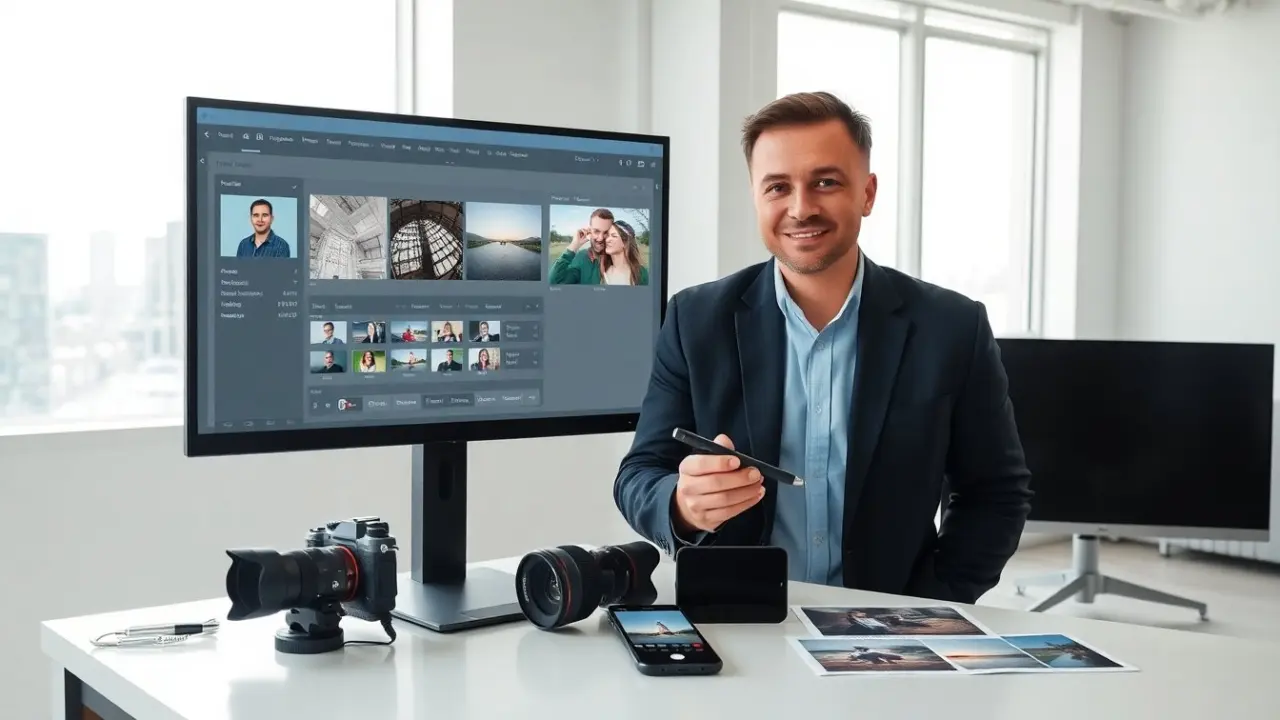
Photographers want fast results and consistent color. This guide lists the best lightroom presets and explains how to pick them. It shows options for portraits, landscapes, film looks, and mobile edits. Each recommendation helps the reader save time and keep a clear editing workflow. Throughout, you’ll find practical testing steps, checklist items to evaluate packs, and tips for integrating presets into batch edits and client delivery so the presets you choose become reliable tools rather than one-off filters.
Key Takeaways
- The best Lightroom presets save time and maintain consistent color by fitting your camera type and photography style, such as portraits, landscapes, or travel.
- Choose presets with non-destructive edits and adjustable sliders to keep original files intact and customize your workflow effectively.
- Portrait presets should preserve skin tones and offer gentle retouching, while landscape presets enhance color, contrast, and detail without oversaturation.
- Creative and film presets provide distinctive looks with adjustable strength and grain, best applied after initial color correction for unique effects.
- For mobile editing, select presets that install as DNG files, work with simple sliders, and support quick, one-tap adjustments across devices.
How To Choose The Right Lightroom Presets For Your Workflow
Photographers should match presets to their camera and shooting style. They should test a preset on three images before committing. They should prefer presets that use non-destructive edits so the original files stay intact. They should check whether a preset includes profiles for color calibration and white balance. They should look for adjustable sliders and layer options. They should plan how presets will fit into a batch workflow and how they will speed export and delivery. They should keep a short list of go-to presets for fast, repeatable results.
Matching Presets To Your Photography Style (Portrait, Landscape, Travel)
Portrait shooters should choose presets that preserve skin tones and reduce harsh contrast. Landscape shooters should choose presets that enhance color and preserve highlight detail. Travel shooters should select presets that handle mixed light and boost midtone contrast. Photographers should test presets on portraits and on environmental shots. They should adjust exposure and white balance after applying the preset. They should save a custom version when they create a reliable combination of adjustments.
What To Look For In A Preset Pack, Flexibility, File Types, And Support
Buyers should confirm that preset packs include XMP and .lrtemplate files for desktop and DNG files for mobile. Buyers should check for install instructions and update notes. Buyers should prefer presets with clear documentation and example images. Buyers should check for developer support or a user group. Buyers should look for preset packs that show before-and-after images and list which sliders change. Buyers should avoid packs that rely only on a single look and offer no options for customization.
Best Presets For Portraits — Skin Tones, Retouching, And Mood
Portrait photographers need presets that protect skin tone and provide soft contrast. The best lightroom presets for portraits include gentle skin smoothing, color correction for multiple skin tones, and eye sharpening. They include separate settings for highlights, shadows, and texture so the editor can adjust retouching strength. A reliable portrait preset also offers mood shifts, warm, cool, or cinematic, without clipping highlights. Photographers should pair a preset with local adjustments for eyes and skin. They should test a preset on a range of skin tones before using it on client work. This ensures consistent results and fewer manual fixes.
When evaluating portrait presets, look for whether the pack documents which Hue/Saturation/Luminance (HSL) channels it modifies; presets that explicitly target reds and oranges usually preserve natural skin hues better. Also check whether the preset reduces texture or uses the Texture/Clarity sliders—these produce different retouching effects and are easier to fine-tune in Lightroom than presets that rely solely on brush-based edits. For commercial or wedding work, create a small “preset workflow” that combines a base preset, a local brush for eyes and teeth, and a final global contrast or vignette adjustment so every image follows the same visual language while allowing per-image corrections.
Best Presets For Landscapes And Nature — Color, Contrast, And Clarity
Landscape photographers want presets that boost color and keep fine detail. The best lightroom presets for landscapes increase midtone contrast and improve color separation without oversaturation. They apply selective sharpening to foliage and maintain highlight detail in skies. They provide graduated filters and radial options tuned for horizon lines and sun positions. They allow control over saturation by hue to avoid unnatural skin or foliage tones. Photographers should check how a preset treats RAW files from their camera model. They should adapt clarity and dehaze sliders to avoid harsh halos in high-contrast scenes.
Practical testing helps: run the preset on a dawn, midday, and golden-hour shot from the same session to see how it handles color temperature shifts and dynamic range. Prefer presets that include options for both global and targeted color shifts (for example, separate treatment of blues in skies versus greens in foliage). If you shoot panoramas or bracketed exposures, make sure the preset doesn’t introduce visible stitching artifacts after tone-mapping. Finally, keep a couple of landscape-focused presets—one for punchy, high-contrast images and one for muted, moody scenes—so you can choose a starting point that matches your creative intent.
Best Film, Vintage, And Creative Presets For Distinctive Looks
Creative presets give a fast way to try new aesthetics. The best lightroom presets in this group reproduce film grain, color cast, and contrast curves from classic stocks. They include film base shifts, faded blacks, and subtle grain controls. They should include multiple strength levels so the editor can dial the look up or down. Creative presets should also include split toning options for highlights and shadows. Photographers should pair a creative preset with precise exposure and white balance adjustments. They should reserve creative presets for final passes rather than initial color correction.
Use creative packs as a finishing layer: first get the exposure, WB, and noise reduction right, then apply a film or vintage preset and reduce its overall opacity or strength if needed. Look for presets that expose which curve adjustments are used (RGB tone curve, channel curves) because those determine how colors shift across highlights and shadows. Grain and vignette controls are essential—good packs offer grain as a separate slider and multiple vignette styles so the effect doesn’t overpower image detail. For editorial or personal projects, build a small catalog of 3–5 creative presets that you can combine with your core processing presets to create unique, repeatable looks.
Best Mobile And Quick-Edit Presets (For Lightroom Mobile)
Mobile users need presets that install as DNG files and work across phones. The best lightroom presets for mobile keep edits simple and use basic sliders. They handle mixed light and keep skin tones stable for quick output. They include export settings for social sizes and provide clear install steps. Mobile presets should not rely on desktop-only profiles or complex local masks. They should allow one-tap edits and small manual tweaks. Photographers should test mobile presets on both Android and iOS devices to confirm color parity. They should save a mobile preset as a repeatable template for fast posting.
To make mobile presets truly useful, create a short SOP: import the preset DNG, copy the settings to new images, make tiny WB/exposure tweaks, then export using a named export preset (size and sharpness) to maintain consistency across platforms. When choosing mobile-friendly packs, prefer those that document which desktop features they omit and that provide alternate instructions for using the same look on both platforms. Finally, keep a “social” version of your best lightroom presets optimized for web sharpening and color shifts that occur during social compression so your images look their best after upload.