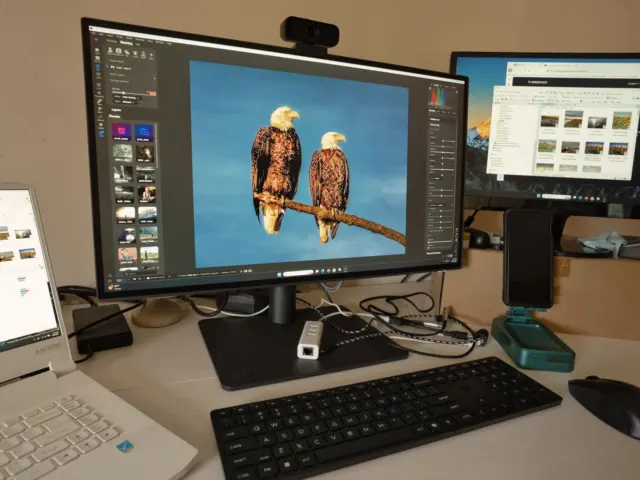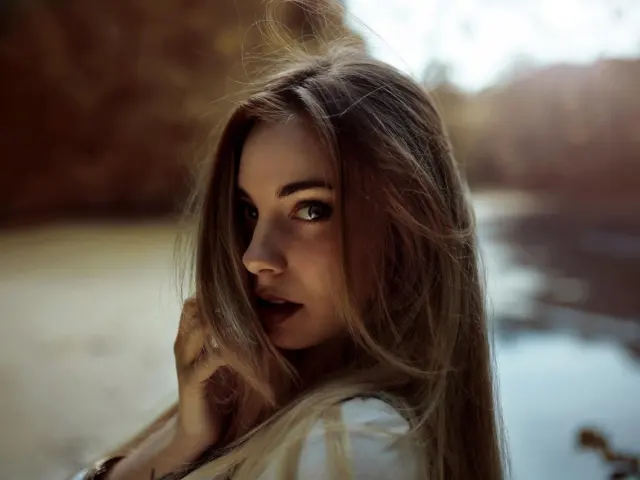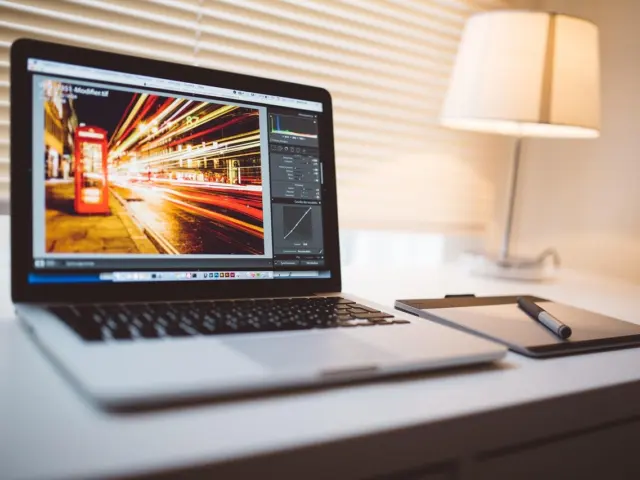
Here is how to edit photos with AI: upload the image, ask for one specific change, compare the result with the original, and keep the edit only if it genuinely improves the photo.
The workflow below works across tools, and it sits within our wider coverage of ai in photography.
How AI photo editors take instructions
Most AI editors accept an edit in one of two ways: a plain-language description, or a selected area plus a description. Img2Go’s editor asks you to type what you want changed in plain language and to be specific for best results. Pixlr’s generative fill works by marking an area with the lasso or a free-form rectangular selection tool and then writing a prompt for what should appear there.
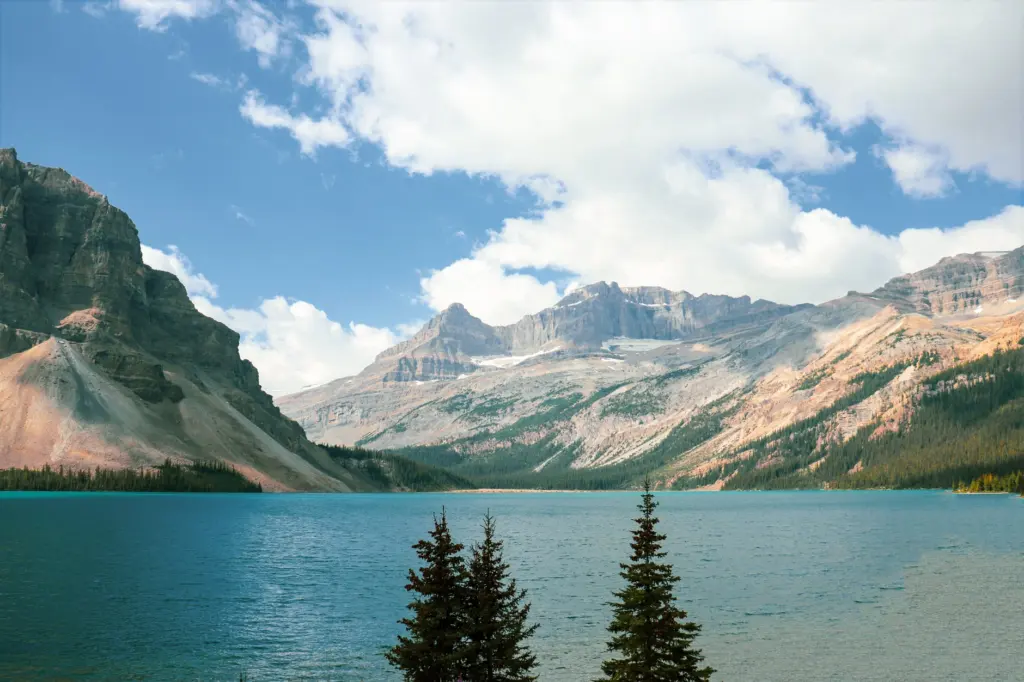
This difference decides which tool suits a job. A whole-image change, such as brightening or restyling, suits a text-only editor. A local change, such as removing a bin from one corner, is safer when you can draw the selection yourself, because the AI then touches only the area you chose. Describing the target area precisely in words leaves more room for the tool to alter things you wanted left alone.
The same logic explains why vague prompts disappoint. The model has to guess what “better” means, and a guess applied to the entire frame is hard to audit. Narrow instructions give you something you can check.
A repeatable workflow that tests whether AI helped
The aim of a workflow is not to apply AI to every photo. It is to make each AI edit earn its place. These stages work for any editor, and the order matters because each one gives you a fair comparison for the next.
- Name the problem. Write down what is wrong with the photo, such as grain, a distracting object, a cluttered background or a tight crop. An edit without a stated purpose cannot be judged.
- Keep the original untouched. Work on a copy, or use a tool that is built for it. Img2Go’s full workspace is non-destructive, with undo, redo and a compare-with-original view available at any time.
- Request one change. PhotoGPT’s guidance is to describe one change at a time and identify the details that should remain unchanged. Stacking several requests in one prompt makes it impossible to tell which instruction caused a problem.
- Compare at full size. Flip between the original and the edit. Check edges, skin, fine texture, and whether light and shadow still agree across the frame.
- Accept, revise or reject. If the result is better, keep it. If it is close, revise the prompt with a narrower instruction. If it is worse or merely different, discard it and move on. Rejecting the edit is a legitimate outcome.
- Record what worked. Save the prompt wording or settings that produced a good result so the next photo from the same shoot gets the same treatment.
This loop is what turns AI editing from a gamble into a method. The comparison step in particular guards against a common failure: output that looks impressive at thumbnail size but falls apart when you inspect it closely.
Cleanup tasks: noise reduction and background removal
Noise reduction
Noise reduction is one of the most dependable AI jobs because the goal is easy to judge. Pixlr describes its Remove Noise function as one that automatically removes grain and reduces background noise, and says it is particularly useful for photos taken in low light or at high ISO settings. For standalone work, Topaz’s suite includes DeNoise AI, which a 2025 roundup of AI editing apps lists with per-tool pricing of $199-399.
The pitfall is over-smoothing. Judge the result on areas with fine detail, such as hair, fabric and foliage, and not on flat sky. If detail looks waxy, the cleanup has gone too far for that image.
Background removal
Background removal is now close to a single action. Pixlr says you click the remove background button and the AI eliminates the background automatically, with sliders to adjust the outline and shadows afterwards. Img2Go offers the same job as a way to remove image backgrounds for clean cutouts and transparent results.
Check the cutout against a contrasting colour, because edge problems such as leftover fringes around hair show up there. If your frames come from a drone, the same inspection applies, and our beginner guide to capturing them, How To Fly A Drone: A Beginner’s Guide To Safe, Confident Flights In 2026, covers the flying side.
Generative fill and expansion
Generative tools create new pixels rather than adjusting existing ones, so they need the closest inspection. Img2Go handles object removal through a prompt: you describe what to remove and the AI fills the area. PhotoGPT’s tool list covers Generative Fill, Relighting, Upscale and Restore, Generative Expand, and Portrait and Expressions.
Generative expand extends the canvas beyond the original frame, which helps when a crop is too tight or you need a different aspect ratio. Pixlr lets you set the expansion yourself or choose from 9 presets such as 1.5x wide, 1.5x high and 1.5x size. Presets are a sensible starting point because a modest extension gives the AI less to invent than a large one.
Whatever tool you use, examine the generated area for texture that repeats, lighting that disagrees with the rest of the scene, and lines that fail to continue across the seam. Adobe Photoshop’s generative features are, according to the same roundup, powered by Adobe Firefly, which matters if you want them inside a professional editing environment.
Choosing an AI editor
No single editor is best for every job, so choose by task and by how often you will use it. A browser tool suits occasional fixes, a subscription suits regular work, and a dedicated noise tool suits a specific problem that recurs.
| Tool | What it offers | Cost noted | Planning use |
|---|---|---|---|
| Img2Go | Plain-language edits, object removal, background removal | 2 free edits per 24 hours with no account; a paid plan unlocks unlimited edits (price not stated on its page) | Quick one-off fixes or trying the method before paying |
| Pixlr Express | One-click background remover, AI enhancement, noise reduction | Included in the free tier | Cleanup tasks on a zero budget |
| Adobe Photoshop | AI tools powered by Adobe Firefly | $22.99/month (Photography Plan), as listed in a 2025 guide | Generative edits inside a full professional editor |
| Lightroom Mobile | AI-powered auto settings | $9.99/month | Fast first-pass adjustments on a phone |
| Luminar Neo | Listed among top AI image-editing apps | $199 one-time or $19/month | Buyers who prefer a one-time purchase to a subscription |
| Topaz DeNoise AI | Noise reduction within the Topaz suite | $199-399 per tool | Recurring high-ISO problems |
| Canva | Basic AI tools | Free tier with limited usage | Light edits alongside design work |
Img2Go’s limits come from its own editor page; the other tools’ features and prices are as listed in an independent roundup, so confirm current pricing before subscribing.
As a rule, start with a free tier and run your own photos through it, since your typical subject and lighting matter more than any feature list. Move to Photoshop or Lightroom if you need generative edits or auto settings built into the software you already use. Add a dedicated noise tool only when grain is a repeated problem rather than an occasional one.
Where manual editing still wins, and client work
AI does not replace manual editing for demanding jobs. It replaces much of the first pass. PhotoGPT itself notes that professional software may still be better for layered composition, precise colour management and advanced masking. In practice, let AI handle the repetitive corrections, then refine by hand wherever the result needs precision or a particular look.
For client work, there is no blanket answer on whether AI editing is allowed. It depends on the terms of the tool you use and on what your client expects. Two points are supported. PhotoGPT advises you to review its privacy and terms before uploading sensitive or confidential material, and says human review remains important for customer-facing assets and regulated claims. Read the terms of any tool before client files go into it, and always inspect the final images yourself before delivery.
High-stakes deliverables make the point. A couple paying for aerial coverage, for example, will examine every frame closely, and our guide to Drone Wedding Photography: Breathtaking Aerial Shots That Tell Your Love Story (2026 Guide) shows how much planning goes into that kind of shoot before editing begins.
Frequently asked questions
Do I need to install software to edit photos with AI?
Not always. Img2Go’s editor runs entirely in your browser, so you can upload, edit and download without an app.
Which file types and sizes do AI editors accept?
Img2Go supports JPG, PNG and WebP. PhotoGPT accepts JPG, JPEG, PNG and WebP files up to 16MB. Check the limits of your chosen tool before uploading large originals.
Should I use the fast or the advanced model?
Where a tool offers a choice, pick by priority. Img2Go lets you select the default, advanced or fast model, depending on whether detail or speed matters more. Use the advanced model for final images and the fast one for experiments.