| Editor | Free-tier facts and limits | Planning use |
|---|---|---|
| Photopea | Browser app with layers, PSD saving and RAW editing. Premium is $5/mo and includes AI credits; the other tools are free. | The pick for layered, Photoshop-style work and for anyone who shoots RAW. |
| Pixlr | Browser editor that exports WebP but not PSD. Its most affordable paid plan is $2.49/mo. | Good for quick, capable edits that end as a flat image, not a layered file. |
| Canva | Free account covers basic and advanced edits in the browser. AI features need premium, from $120/year as of January 2025. | Suits simple fixes and design work; budget for premium if you want AI tools. |
| Adobe Express | Thousands of free templates and design assets, but limited colour and exposure adjustments. | Choose it for template-led layouts, not for correcting a poorly exposed photo. |
| Fotor | Works on phone and desktop. In one test the free version could not save without a watermark; annual premium starts from $3.33/mo. | Fine for trying ideas; expect to pay before final delivery. |
| GIMP | Free download for Windows, macOS and Linux. Handles TIFF, AVIF, WebP and PSD, with no AI tools at the time of testing. | A desktop alternative when browser editors feel limiting. |
Figures come from Hinson Photography’s free editor comparison and Shopify’s online photo editor review.
The best free online photo editing tools depend on the job: Photopea suits layered, Photoshop-style work and RAW files, Canva suits quick browser edits, and Adobe Express suits template-led design. Check watermark and format limits before committing.
If you are starting from scratch, read our guide to photo editing for beginners first, then use the choices below to match an editor to your skill level and the photo in front of you.
Choosing by skill level and task
No single free editor wins every task, so match the tool to the job. Hinson Photography edited the same photo in each editor it compared, and Shopify’s review judged tools on common tasks such as cropping, resizing, background removal, brightness, contrast and saturation. Those are the jobs most people actually need done.
First edits and quick fixes
Beginners gain most from an editor that opens in a tab and handles the basics without a learning curve. These are the realistic starting points:
- Canva for browser-only edits. Shopify notes that Canva is free for basic and advanced edits and works entirely inside your browser. In that review its one-click background removal worked as advertised. Its AI features sit behind the premium plan.
- Pixlr for a Photoshop-like feel. One hands-on reviewer wrote that Pixlr was by far the best free Photoshop alternative that they tried. Treat that as one person’s ranking, but it is a good reason to try Pixlr first if you want something close to a desktop editor.
- Fotor for experimenting only. The reviewer could not save an image from the free version without a watermark, so it is better for testing looks than for producing finished files.
Layered edits and retouching
Photopea is the free browser editor to pick when you want real layers. The Hinson Photography review says it has the most similar layout to Photoshop, lets you work in layers and save files as PSD, and can edit RAW images. That combination suits detailed retouching, such as the approach in How To Edit Hair In Photos: Simple, Natural-Looking Techniques For Faster Results (2026), where selections and layers matter more than one-click filters.
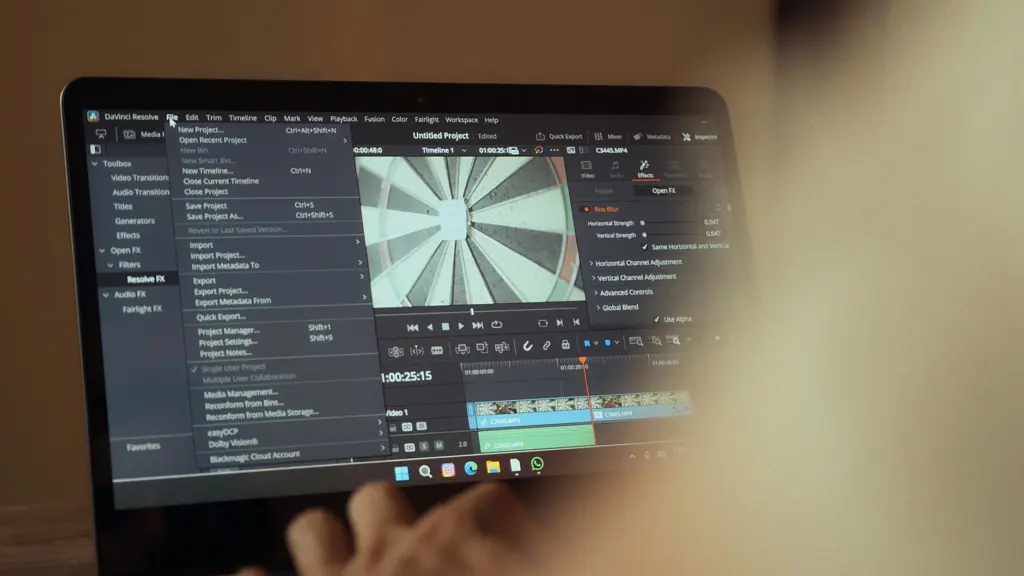
If you are comfortable installing software, GIMP is the other route. Shopify describes it as completely free to download for Windows, macOS and Linux, and says it can work with basically any type of image file. The trade-off is that it is not a browser tool, and it did not yet offer AI-powered tools when Shopify tested it.
Template-led design
Adobe Express includes thousands of free templates and design assets, which makes it useful when a photo is going into a layout. The same review found limited adjustments for colour and exposure. If the photo itself needs correcting, fix it in Photopea, Pixlr or Canva first, then bring it into Adobe Express for the layout.
RAW support and file formats
Most free editors do not open RAW camera files. The Hinson Photography review states that most of the free photo editing tools it tried do not support the RAW camera format, with Photopea named as an exception. If you shoot RAW, Photopea is therefore the browser editor to start with, and everything else in the table is better treated as a JPEG or PNG editor.
File type also decides where an edit can go next. Photopea saves PSD, so you can hand a layered file to anyone using Photoshop. Pixlr does not export PSD but does export WebP, which the reviewer called a great bonus feature. That makes Pixlr a sensible last stop for web images and a poor choice if you expect to reopen layers elsewhere. GIMP reads a wide range of formats, including TIFF, AVIF, WebP and PSD, which helps when you receive files in mixed formats.
Watermarks, paywalls and export limits
Free usually means free to edit, with the cost arriving at export or at the AI tools. Before you spend an hour on a photo, check these conditions:
- Watermarks on export. Fotor’s free version stamped a watermark on the saved image in the reviewer’s test. If the file is going to a client, test a save before you start editing.
- AI features behind a plan. Photopea’s premium plan is $5/mo and includes AI credits, while its other tools remain free. Canva’s AI features need premium, which started at $120/year as of January 2025. If you do not need AI tools, you can skip both.
- Entry-level paid plans. If a free tier stops being enough, Pixlr’s most affordable plan is $2.49/mo and Fotor’s annual plan starts from $3.33/mo. Both come from the Hinson Photography comparison.
- Output format. Match the export type to the destination. For paper, check the output against our guide, How To Print Out Photos: The Simple 2026 Guide To Perfect Prints Every Time, before you finish.
For a free editor to be a long-term choice, it needs to export in the format you actually use without a watermark. If it does not, either accept a paid plan or move to a tool that does, such as GIMP on the desktop.
Platform and device support
Browser editors trade installation for dependence on your connection and your machine’s memory. Photopea is a web-based app that is accessible on any computer and needs no hard drive space, but the reviewer found it can be slower on complex projects. Canva works entirely inside the browser. Fotor can be used on a phone or desktop, which suits editing on the move.
GIMP is the exception: it installs on Windows, macOS or Linux and does not depend on a browser tab. If you have a heavy layered file and a modest laptop, that is the point to consider it. For ordinary crops and colour tweaks, a browser editor is simpler.
A simple crop-and-export routine
The same routine works in any editor above, because every one of them covers the common tasks Shopify tested. Follow this order so you do not redo work:
- Crop and straighten first, so later adjustments apply to the final frame.
- Adjust brightness, contrast and saturation in small steps and compare against the original.
- Remove the background only if the image needs it, and check whether your editor locks that tool behind a paid plan.
- Export a test copy and look for a watermark before you close the editor.
For the export itself, Wixel’s guidance is to choose JPEG for an excellent balance of quality and small file size, and PNG when you need transparency. Keep a layered PSD from Photopea if you may want to edit again.
Frequently asked questions
Is there a free editor that needs no download at all?
PhotoKit says it does not need to be downloaded and installed, and its page lists Chrome and Safari. Its site also states that all image processing tools are free, while VIP users have no restrictions on downloading pictures, so check the download terms on the free tier before relying on it. PhotoKit’s own page has the details.
What does Wixel’s free plan include?
According to Wixel, the free plan gives unlimited access to all manual editing tools, plus 20 AI credits each week. That suits people who edit by hand and use AI only occasionally.
Which tools are locked behind a paid plan?
PicMonkey says its background remover is exclusively Pro-only, and offers a free trial of 7 days rather than a permanent free tier. In the Hinson Photography review, BeFunky’s object removal was not included in the free version.