They want to know how to scan old photos for the best resolution. This guide gives clear steps and exact settings. It lists hardware choices, scanner settings, cleaning steps, and file options. It avoids vague advice and shows actions readers can apply. The instructions fit common scanners and home workflows.
Key Takeaways
- To scan old photos for the best resolution, use a flatbed scanner with true optical resolution above 2400 dpi, especially for small prints, and 4800 dpi or higher for negatives.
- Prepare photos by flattening curled images, cleaning dust carefully, and choosing the right scanner type (flatbed for prints, film scanner for negatives).
- Set scanner software to color mode even for black-and-white photos, scan at 48-bit color depth or 16-bit grayscale, and select TIFF format for archival quality.
- Clean the scanner glass before each session, position photos flat with the emulsion side down, and perform multiple passes for high-detail scans.
- After scanning, edit TIFF masters cautiously with selective sharpening and noise reduction, save originals untouched, and export high-quality JPEGs for sharing.
- Store master files on multiple media types with organized naming and backup strategies to preserve your scanned photos long-term.
Prepare Photos And Choose The Right Scanner
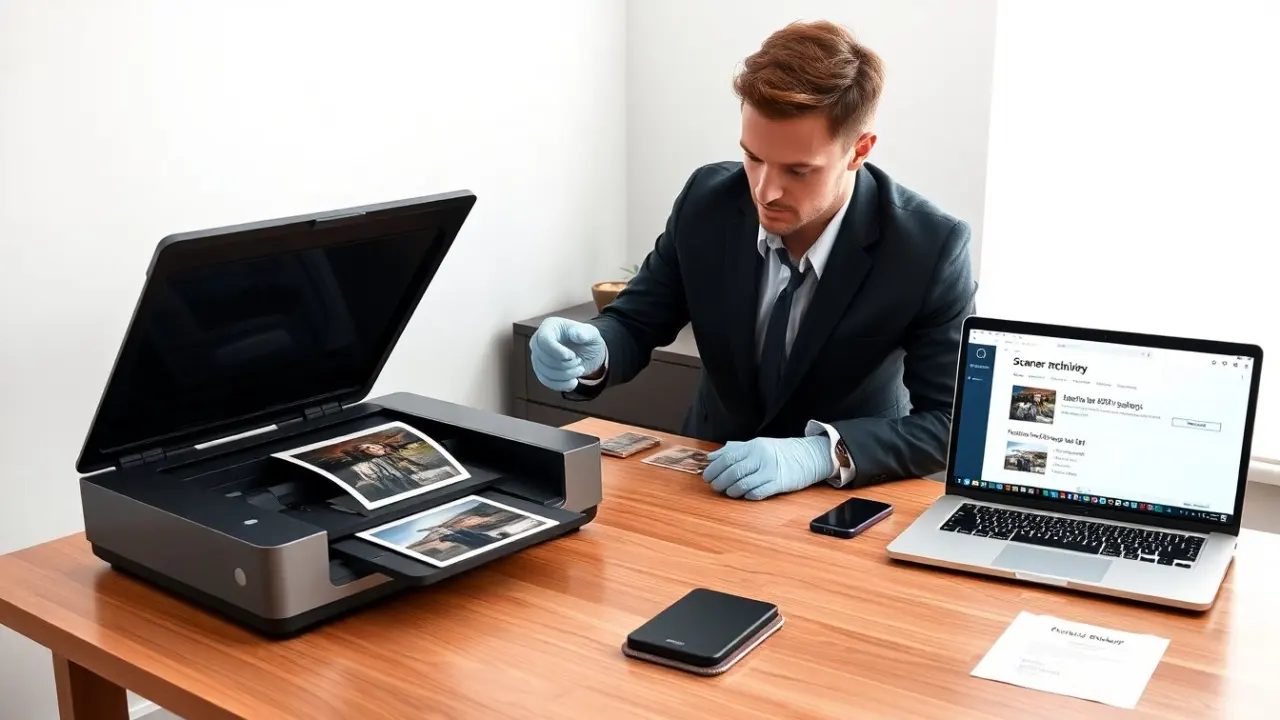
They inspect each photo for damage first. They separate curled, torn, or stuck photos. They flatten curled photos under a clean weight for several hours. They remove dust with a soft brush and lint-free cloth. They choose a flatbed scanner for fragile or mixed-size photos. They choose a film scanner when they have negatives or slides. They prefer scanners with optical resolution ratings above 2400 dpi for small prints and above 4800 dpi for negatives. They verify scanner drivers and software compatibility with their computer. They pick a scanner model that lists true optical dpi rather than interpolated values. They check sample scans online when possible. They place the scanner on a stable surface to avoid vibration during scanning.
Optimal Scanner Settings For Maximum Detail
They open the scanner software and set scanning mode to color even for black‑and‑white photos. They set the optical resolution where detail matters. They use 300–600 dpi for standard 4×6 and 5×7 prints when they plan to view on screen. They choose 1200–2400 dpi for prints they plan to crop or enlarge. They select 2400–4800 dpi or higher for scanning negatives to capture fine grain. They scan at 48‑bit color depth for color accuracy and 16‑bit grayscale for black‑and‑white originals. They disable automatic color correction when they want to preserve original tones. They enable dust and scratch removal only when the algorithm improves the image without softening detail. They choose TIFF as the master file format for archival scans. They save JPEG copies from the TIFF for sharing. They set the scanner to save at 100% quality for JPEG exports. They preview the scan and crop to the photo edges inside the software to avoid extra background. They use a neutral color profile like sRGB for general use or Adobe RGB for print work.
Scanning Workflow: Cleaning, Positioning, And Multiple‑Pass Strategies
They clean the scanner glass before every session. They wipe the glass with a lint-free cloth and isopropyl alcohol when needed. They position each photo flat on the glass with the emulsion side down. They align photos with guides or the glass edge to keep scans straight. They scan a small test area first to check exposure and color balance. They adjust exposure or gamma if the preview looks too dark or too bright. They perform multiple passes for high-detail work. They run a high-resolution master pass for archival TIFF files. They run a lower-resolution pass for quick previews. They scan negatives once and then flip settings for color inversion in software. They keep an organized folder structure with clear file names and date stamps. They note the scanner settings in a text file alongside TIFF masters so they can repeat settings later.
Post‑Scan Processing, File Formats, And Long‑Term Storage
They open the TIFF master in an editor for adjustments. They crop to final composition and straighten the horizon if needed. They use selective contrast and sharpening sparingly to keep edges crisp. They avoid global sharpening that creates halos. They apply noise reduction only to reduce visible grain without losing texture. They save edits as new TIFF files and keep the original master untouched. They export high-quality JPEGs for sharing and smaller PNGs for web use. They embed the color profile when they save files. They name files using a clear pattern like YYYY-MM-DD_location_subject.tif. They store masters on at least two different media types, such as an external SSD and cloud storage. They verify backups with periodic checksum checks. They use lossless compression like ZIP for extra archive space when needed. They keep a simple catalog file with keywords so they can find scans later. They print test proofs when they plan large physical prints to confirm color and detail.