You want a favorite shot on paper, not a screen. How to print photos from phone: match the photo’s shape to the print size, check its pixels, then choose a printer or lab.
Most disappointing prints trace back to a handful of assumptions, covered below. For the wider editing routine that comes first, see photo editing for beginners.
Common assumptions that spoil phone prints
A phone photo is a grid of pixels in a fixed shape, and every print is a fixed sheet size. Problems appear when the pixel count is too low for the size, when the shape does not match the paper, or when the printer is not built for photographs. The table sets each common assumption against what actually happens.
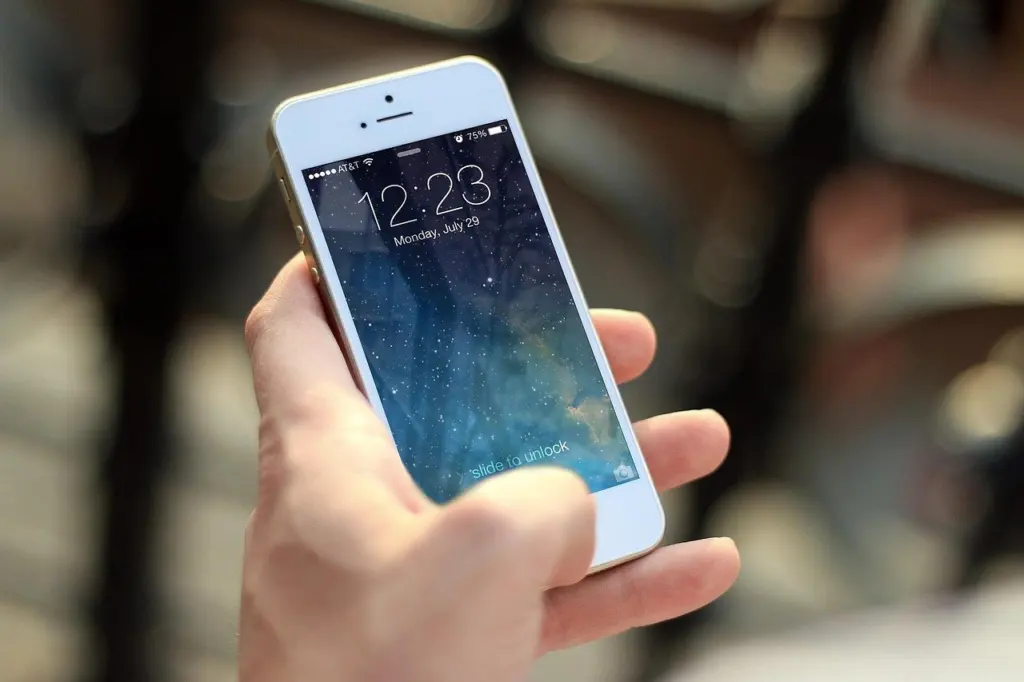
| Assumption | What actually happens | Planning use |
|---|---|---|
| A bigger megapixel number means any print size works | Modern Android cameras range from 12 to 108 megapixels, but high-resolution printing targets 300 PPI. A Galaxy S24 photo of 8160 × 6120 px gives 27.2 × 20.4 in at 300 PPI. | Judge size by pixels per inch, not by the megapixel label. |
| Zooming in while shooting is harmless | Most smartphones use digital zoom, which simply crops and enlarges the image and lowers quality. | Step closer or crop later, and print smaller if you zoomed. |
| The iPhone print screen sets the photo size | It lets you pick a printer, the number of copies and sometimes a paper size. Fit to Page rescales the file to the sheet, so the printed size changes. | Choose paper that matches the photo’s shape rather than relying on scaling. |
| Any printer gives a good photo print | Standard printers often give disappointing results for Android photos, and a dedicated photo printer is recommended. | Use a photo printer or a lab for pictures you want to keep. |
These points come from print-shop guidance on Android photos and iPhone print-size guidance.
Resolution and zoom: what your pixels allow
The pixel dimensions of the file, not the phone’s marketing, decide how large a print can look sharp. The usual guide is to aim for 200 to 300 PPI, and 300 PPI is the high-resolution printing target. Treat 300 PPI as the goal and 200 PPI as the bottom of the usable range, not as a number to aim for.
Reading the numbers
Check the pixel dimensions of the original in your gallery’s info panel, then compare them with the print size you want. If the file is comfortably above the target, you can print larger. If it only reaches the lower end of the range, pick a smaller print and keep it for viewing at arm’s length.
Zoomed and cropped shots
Digital zoom throws away pixels before you ever press print, so a heavily zoomed photo is a poor candidate for a large print. Cropping tightly in an editor has the same effect. Save big sizes for frames you composed without zoom, and use small prints for the rest.
- Original file first: print from the original capture, not a copy that was shared through a messaging app.
- Warnings are useful: if a lab editor says the photo is too small for the selected format, choose a smaller size instead of ignoring it.
Aspect ratio and print sizes
Aspect ratio is the shape of the frame, and it decides what gets trimmed. Most Android phones and iPhones shoot 4:3 photos by default, so the sizes closest to that shape are 3.25 × 4 in and 6 × 8 in. Any other size means some of the photo is cropped. A lab editor lets you adjust that crop.
| Print size | Shape and fit | Planning use |
|---|---|---|
| 3.25 × 4 in and 6 × 8 in | Closest match to the 4:3 phone default | Best when you want the full frame with little trimming. |
| 4 × 4, 5 × 5 and 6 × 6 in | Square; parts of the photo are cropped | Good for subjects centered in the frame; set the crop yourself. |
| 4 × 6 in | 2:3, a longer shape than a phone photo | Expect trimming; check the crop before ordering. |
| Letter sheet | Closer to 3:4, so nearer the phone shape than 4 × 6 | A 4 × 6 photo filled to the Letter width pushes about 14% of its height off the bottom. |
| 2.5 × 3.5 in = 64 × 89 mm | Classic wallet size | Suits small keepsake copies of a tightly framed subject. |
Size and shape details come from a photo lab’s phone-printing guide and an iPhone print-size guide.
The practical rule is to choose the size first and crop to its shape yourself. That way you decide what is lost, instead of leaving the decision to a lab’s automatic fit or to AirPrint scaling the file to the sheet.
Home printer, online lab or kiosk
The choice comes down to quality, cost per print and how soon you need the result. A standard printer is the weak option for photographs. Print-shop guidance says results from a standard printer are often disappointing and recommends a dedicated photo printer. A portable printer made for photos falls on the dedicated side of that line.
| Option | Cost and speed evidence | Quality notes | Best suited to |
|---|---|---|---|
| Home printer | No shipping charge and no wait for delivery | Dedicated photo printer recommended; standard printers often disappoint | A few prints at once, if you own a photo printer |
| Online lab | Retro prints from $0.34 per piece; wallet-size from $0.49 per piece; shipping from $13.00, discounted over $60.00; delivery from 4 business days | Crop adjustable in the lab editor | Batches of keepers and gifts where you can wait |
Lab figures come from a photo lab’s published pricing, and the home-printer note from print-shop guidance.
- Choose a lab for batches: shipping from $13.00 weighs heavily on a small order, and the discount applies over $60.00, so gather everything you want printed into one order.
- Choose a photo printer at home for speed: it avoids shipping and delivery time, but only a dedicated photo printer or a portable printer built for photos matches the quality advice above.
- Treat a retail kiosk like a lab order: apply the same shape and pixel checks, and compare its on-screen price per print with the lab figures before you confirm.
Printing from an iPhone
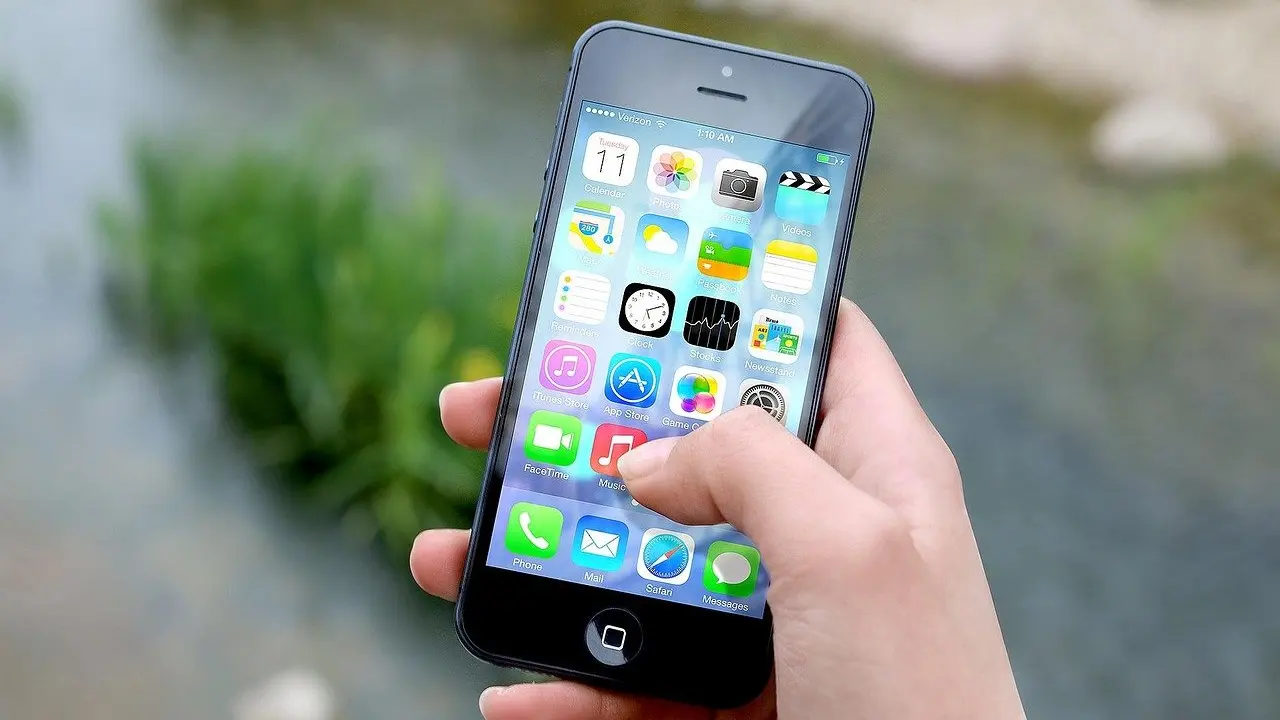
iPhone printing works through AirPrint, which sends a photo to a compatible printer without extra software. The weakness is control: the print screen offers a printer, the number of copies and sometimes a paper size, but no photo size setting. AirPrint fits the content to the sheet, so a photo whose shape differs from the paper is scaled or trimmed.
- Crop first. Open the photo and crop it to the shape of the paper you will print on.
- Open the print screen. Use the share control on the photo and choose Print.
- Set the options. Pick the printer, the copies and, when offered, the paper size.
- Avoid Fit to Page for exact sizes. It rescales the file to the sheet, so the printed size changes.
If you would rather skip a printer, a lab order can also be finished entirely on an iPhone. That route suits photos where size and crop matter more than speed.
Printing from an Android phone
Android printing now relies on a direct printer connection or a lab app. For high quality, the lab route is the dependable one when you do not own a photo printer. The order follows the same sequence in most lab apps, and the point where you choose the print size is where the aspect-ratio checks above apply.
- Prepare the file. Pick the original photo in your gallery and crop it to the shape of the print you want.
- Upload it. Upload the image to the lab’s site or app and choose a print size.
- Choose paper and frame. Select the paper and, if offered, a frame.
- Preview before paying. Check the crop in the preview and adjust it in the editor if parts of the photo are cut off.
Android cameras differ widely in resolution, so always check the file’s pixel dimensions against the size you choose rather than assuming every phone prints the same.
Edit before you print
Editing is where you control the result, because a lab or AirPrint will otherwise make its own decisions. Crop to the print’s shape, correct exposure and color, and remove distractions before the file leaves your phone. If a busy backdrop pulls attention from your subject, How To Remove A Background From A Picture: 7 Easy Methods For Cleaner Photos In 2026 covers the options. If you plan to edit regularly and need to choose software, lightroom vs photoshop compares the two main tools.
Frequently asked questions
| Question | Answer |
|---|---|
| Can I still use Google Cloud Print on Android? | No. Google Cloud Print was deprecated, so use a direct printer connection or a lab app instead. |
| Can I order prints without a computer? | Yes. A lab order can be completed on an iPhone in a matter of minutes. |
| How do I gather photos quickly for a lab upload on Android? | Open your gallery and favorite every photo you want printed, then upload from the Favorites album. |
| What happens if my photo is too small for the print size? | The lab editor automatically notifies you when a photo is too small for the selected format, so pick a smaller size or a better file. |