How to print passport photos at home is a common question. This guide explains the rules, the file prep, and the printing steps. It lists required sizes, background rules, and clothing tips. It shows the exact software settings to crop and layout images. It covers printer settings, paper choice, cutting, and verification steps. It helps avoid common errors.
Key Takeaways
- To print passport photos at home, use a high-quality digital image that meets size and background requirements, such as 2 x 2 inches for U.S. passports with a plain, light background.
- Prepare the image by cropping to the exact dimensions and layout multiple copies on an 8.5 x 11 inch canvas at 300 dpi using photo editing software or dedicated online tools.
- Use glossy or matte photo paper and set your printer to photo mode with 300 dpi, printing at 100% scale to ensure the passport photo prints at the correct size without distortion.
- Measure the printed photo to confirm it meets size standards, and carefully cut along trim marks without touching the photo’s face to maintain quality.
- Avoid common mistakes like incorrect size, shadows, poor resolution, or reflections by checking your setup and retaking or reprinting photos if necessary, keeping the original digital file for future use.
Passport Photo Requirements: Size, Background, Clothing, And Quality
Passport offices set strict rules for passport photos. The user must meet size rules. For U.S. passports, the photo must be 2 x 2 inches (51 x 51 mm). For many other countries, the image must be 35 x 45 mm or another specified size. The subject must face the camera and keep a neutral expression. The eyes must be open and visible. Glasses are not allowed in most countries. Headwear is allowed only for medical or religious reasons and must not hide the face.
The background must be plain and light. A white or very light gray background usually meets the rule. The subject should stand 3 to 4 feet from the background to avoid shadows. Lighting should be even on both sides of the face. The photo must be in color, not black and white. The print must show natural skin tones. The image must be sharp and free of blur. No filters or heavy editing may appear.
The file quality must meet resolution rules. The image should be at least 300 dpi at the final print size. The file format should be JPEG for most forms. The image must not show damage, creases, or stains. The subject must not wear uniforms or costumes. The camera should focus on the head and upper shoulders. The head must fill the required portion of the frame, usually between 50% and 70% of the photo height. The applicant must check the passport office page for any country-specific variations before they print.
Prepare, Crop, And Layout Your Photos For Printing (Software And Settings)
The user should start with a high-quality digital photo. They should upload the file to a photo editor or to an online passport photo tool. They should set the canvas to the target passport photo size in pixels. For a 2 x 2 inch photo at 300 dpi, the canvas should be 600 x 600 pixels. For a 35 x 45 mm photo at 300 dpi, the canvas should be roughly 413 x 531 pixels. The user should place the head in the frame so the chin and crown match the size guide for that country.
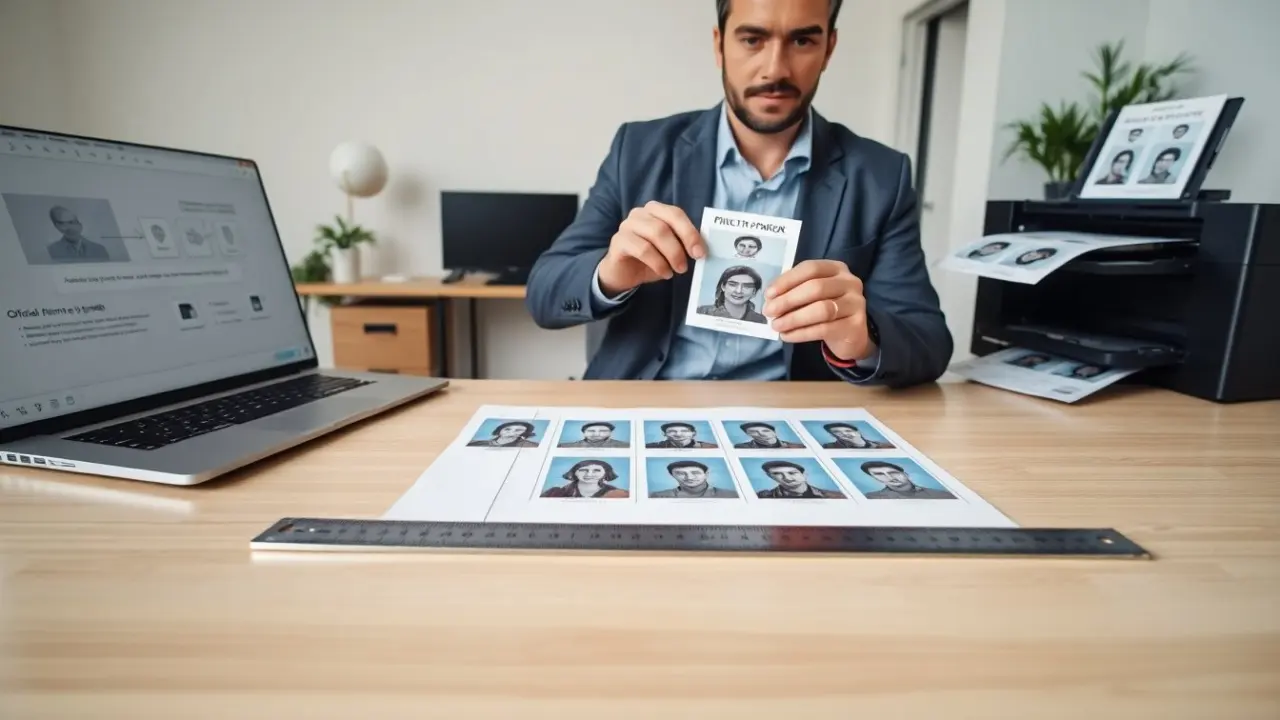
The user should crop with fixed aspect ratio. They should keep subject-centered and vertical. They should avoid tilt and off-center crops. They should export the cropped image as a high-quality JPEG and name it clearly. They should open a new layout document sized for the print paper. For letter paper, the canvas should be 8.5 x 11 inches at 300 dpi. The user should import the cropped images and arrange multiple copies in a grid. They should leave small margins as required by the printer. The user should add crop marks or trim guides if the software allows.
Recommended software includes free editors like GIMP and Paint.NET and paid apps like Photoshop. The user can also use dedicated passport photo websites that set the exact crop and layout. The user should verify pixel dimensions and DPI in the file properties. The user should save a copy for print and a backup copy for future edits. The user should keep the color profile in sRGB unless the printer requires another profile.
Print, Cut, Verify, And Common Troubleshooting Tips
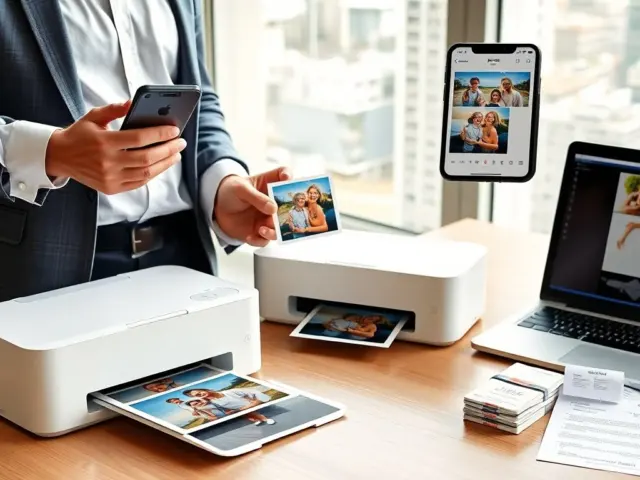
The user should pick the right paper and printer. They should use photo paper marked glossy or matte for photos. They should set the printer driver to photo mode and 300 dpi or higher. They should choose color printing and the sRGB or standard profile. They should turn off automatic scaling in the print dialog. They should set the print size to actual size or 100 percent to keep the measurements exact.
The user should print one test page first. They should measure one printed photo with a ruler. They should confirm the photo measures exactly 2 x 2 inches or the target size. If the size is off, the user should check scaling and paper size settings. If the colors look wrong, the user should check the paper type and the color profile. They should run a nozzle check or print a test pattern if the printer shows streaks.
The user should cut photos with a sharp paper cutter or straight-edge and craft knife. They should cut along the trim marks. They should avoid touching the photo face. They should round corners only if the passport office allows it. They should compare the printed photo to the official guide or an online passport photo checker to confirm head size and position.
Common errors include wrong size, dark shadows, low resolution, and reflections on glasses. The user should retake the photo if eyes are hidden, the expression is not neutral, or the background is not plain. The user should reprint on fresh paper if the first print shows streaks or uneven color. The user should keep the original digital file for future prints. If uncertainty remains, the user should use a professional passport photo service.