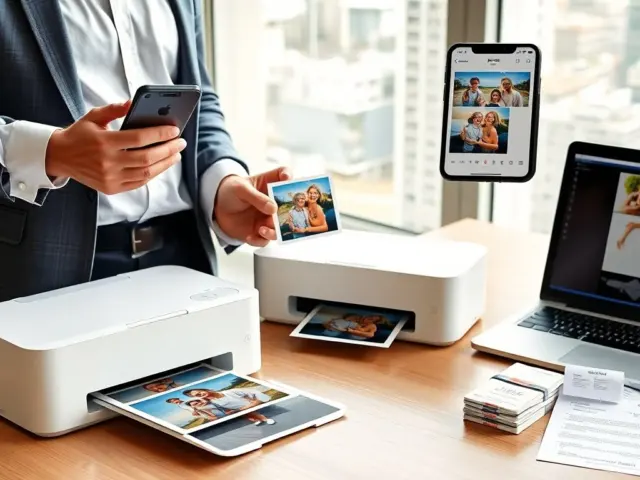
how to print polaroid style photos is a practical skill for people who want instant-look prints from digital files. The guide shows clear steps. It covers image setup, printing options, paper choices, and finishing touches. The reader learns which settings deliver a classic Polaroid white frame and which tricks add a vintage feel. The instructions assume a home printer and accessible tools.
Key Takeaways
- To print Polaroid style photos, select images with a square or near-square aspect ratio and leave extra space at the bottom for the classic white border.
- Prepare your image by placing it on a larger white canvas with the correct proportions, then save and export a high-resolution file at 300 DPI for crisp prints.
- Use 200–300 gsm matte or glossy photo paper, and choose border styles like classic white or tinted for a vintage feel before printing.
- Set your home inkjet printer to high-quality photo mode with actual size printing, disable scaling, and print test sheets to check color and border alignment.
- Trim prints carefully using a sharp blade or cutter, then add authentic aging effects or handwritten captions for a personalized Polaroid look.
Choose The Right Photo And Aspect Ratio For The Polaroid Look
People pick images that work well with a square or near-square crop. They choose portraits, still life, or scenes with a clear center subject. They crop images to 1:1 or to Polaroid’s original 3:4 (width:height) with the white space at the bottom wider. They avoid photos with key details at the edges. They test crops on-screen and confirm composition before editing. They keep the main subject away from the bottom area reserved for the thicker border.
Prepare The Image For A Polaroid Border
The user opens the image in an editor and creates a new canvas larger than the photo. They place the photo centered on the canvas. They set a white background and leave extra space at the bottom for the classic Polaroid look. They save a layered file if they plan to adjust borders later. They export a high-quality JPEG or PNG for printing.
Resize, DPI, And Canvas Settings For Crisp Prints
The editor sets image resolution to 300 DPI for sharp prints at typical sizes. The user measures the intended print size and multiplies inches by 300 to get pixel dimensions. They resize the photo layer to fit the inner square while keeping the canvas for the border. They choose a canvas size that yields an outer print of roughly 3.5 x 4.25 inches for a classic feel or a larger size for easier handling. They check for upscaling artifacts and apply mild sharpening if needed.
Select Paper, Finish, And Border Style (Classic White, Color, Or Custom)
They choose paper weight between 200 and 300 gsm for a sturdy feel. They pick matte for a muted look or glossy for vivid colors. They decide on the border style: classic white, tinted white, or a colored border. They consider a slightly textured paper for a vintage impression. They order a small pack of test sheets to confirm color and weight before printing many copies.
Step-By-Step Printing Workflow For Home Inkjet Printers
They load the chosen paper into the inkjet tray with the printable side up. They open the exported image and select ‘actual size’ in the print dialog. They set printer quality to high or photo mode and choose color management handled by the printer or the editor, not both. They disable page scaling. They print one test sheet and inspect color, border alignment, and sharpness. They adjust margins and color profiles and reprint until the sample matches the expected look. They print the final batch in small runs to avoid drying issues and to monitor ink levels.
Cutting, Mounting, And Adding Authentic Aging Or Handwritten Details
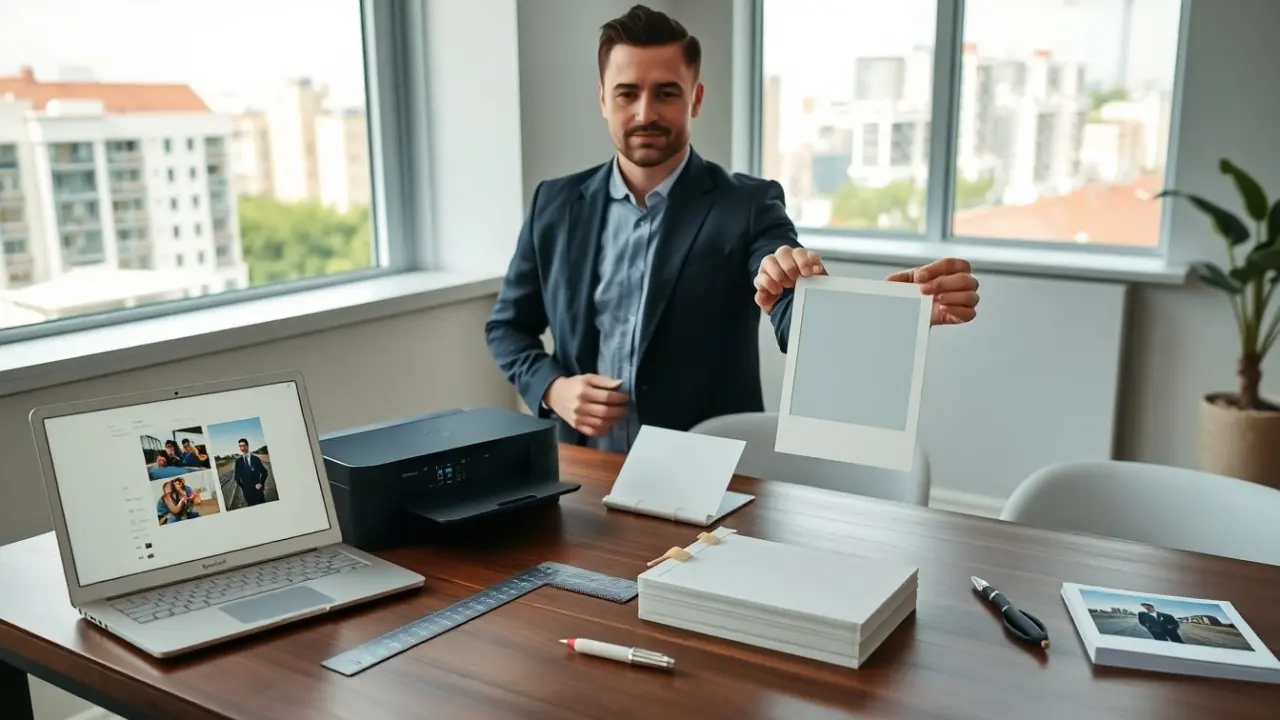
They use a craft ruler and a sharp blade or a guillotine cutter for clean edges. They trim the printed sheets to the outer border lines. They mount prints on card stock if they want extra thickness. They add small details with a soft pencil or archival pen for authenticity. They slightly sand edges or apply light tea staining to add mild aging. They write captions on the bottom border with a thin felt-tip pen for a personal touch. They store finished prints flat in a dry envelope to prevent warping.